MacBook screen flickering is one of the most frequently reported display issues, affecting both older Intel-based machines and newer Apple Silicon models. The root cause can be as simple as a macOS bug or as serious as a failing display cable or GPU.
This guide covers exactly what causes MacBook screen flickering, which software fixes to try first, what professional repairs actually cost in the US market, and how to decide whether fixing or replacing makes more financial sense.
Key Takeaways
- MacBook screen flickering stems from software bugs, GPU issues, loose display cables, backlight failure, or overheating
- Try software fixes first — they're free and resolve the problem in roughly half of reported cases
- If flickering persists after software fixes, the cause is almost certainly hardware — get a professional diagnosis
- Repair costs range from $0 (software only) to $700+ depending on the component and model
- If repair costs exceed 50% of the MacBook's current value, replacement is usually the smarter call
What Causes MacBook Screen Flickering?
Flickering almost always falls into one of two categories: software-related or hardware-related. Getting this diagnosis right determines both the fix and what you'll spend.
Software-Related Causes
MacOS bugs, outdated display settings, incompatible third-party apps, or conflicting system extensions can all trigger display instability. These are typically the easier problems to fix — sometimes a single system update resolves everything.
A few specific features are worth checking:
- Automatic Graphics Switching — on Intel MacBook Pro models with two GPUs, this feature toggles between integrated and discrete graphics and has been linked to flickering in Apple community reports
- True Tone — user reports on Apple's own forums document color shifts and flicker tied to True Tone on certain MacBook models, particularly after macOS updates
- Dark Mode — worth toggling off temporarily to rule it out, though Apple hasn't identified it as a verified flicker cause
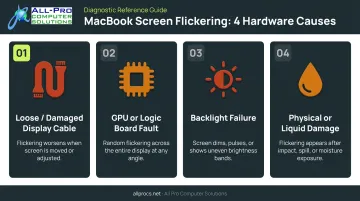
Hardware-Related Causes
Hardware causes require more investigation, and typically more money to fix. The main culprits:
- Loose or damaged display cable — the flex cable connecting the logic board to the screen can fatigue or tear from repeated lid opening and closing. This was documented extensively by iFixit with the "Flexgate" issue on 2016 MacBook Pro models, where the cables were simply too short for the hinge motion
- GPU degradation or logic board faults — produces flickering under heavy workloads like video editing; overheating from clogged vents worsens this
- Backlight failure — shows up as uneven brightness, patchy dimming, or full-screen flashes
- Physical damage or liquid exposure — disrupts display components in ways that mimic all of the above
How to Fix MacBook Screen Flickering Yourself
Always start with software. These fixes cost nothing and resolve far more flickering cases than people expect.
Software Fixes (Try These First)
Step 1 — Restart and update macOS
Go to Apple Menu > System Settings > Software Update. Apple regularly patches display-related bugs in point releases, and running an outdated version is a common cause of persistent flickering.
Step 2 — Reset NVRAM and SMC
NVRAM stores display resolution and brightness settings. For Intel Macs, shut down, power on, and immediately hold Option + Command + P + R for about 20 seconds. Apple confirms this reset applies to Intel-based Macs only — M1/M2/M3 owners don't need this step.
For the SMC reset:
- Intel Macs (non-T2 chip): Shut down, hold Shift + Control + Option + Power for 10 seconds, release, then power on
- Intel Macs (T2 chip): Shut down, hold Control + Option + Shift for 7 seconds, then add the Power button for another 7 seconds
- Apple Silicon Macs: No manual SMC reset needed — restart or shut down and power back on
Step 3 — Disable Automatic Graphics Switching and visual features
- Turn off Automatic Graphics Switching: Apple Menu > System Settings > Battery > Options (Intel dual-GPU MacBook Pro only)
- Disable True Tone: System Settings > Displays > select your display > toggle True Tone off
- Switch from Dark to Light mode: System Settings > Appearance > Light
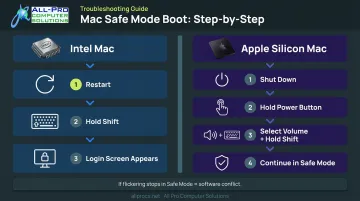
Step 4 — Boot in Safe Mode
Safe Mode prevents third-party software from loading at startup. If flickering disappears in Safe Mode, a third-party app or extension is the likely culprit.
- Intel Macs: Restart and hold Shift until the login screen appears
- Apple Silicon Macs: Shut down, hold the Power button until startup options appear, select your volume, hold Shift, then click "Continue in Safe Mode"
Hardware Fixes (When Software Doesn't Help)
If all four software steps fail and flickering continues, the issue is almost certainly hardware. At this point, professional diagnosis is the right move. Opening a MacBook chassis without the right tools and training risks voiding any remaining warranty and can cause additional damage.
APCS (All Pro Computer Solutions) handles MacBook hardware diagnosis and repair out of two North Bay Area locations — Healdsburg in Sonoma County and San Rafael in Marin County. Their $100 diagnostic fee covers a full assessment, and in some cases that fee alone resolves the issue. No shipping required, no disassembly attempts at home.
MacBook Screen Flickering Repair Costs
Cost depends on three things: what's causing the flickering, your specific MacBook model and year, and whether you go to Apple, an authorized service provider, or an independent shop.
Typical Cost Ranges
| Repair Type | Typical US Cost |
|---|---|
| Software/diagnostic fix | $0–$100 |
| Display cable reseating or replacement | $100–$300 |
| Backlight repair | $150–$350 |
| Screen replacement (non-Retina/older Unibody) | $150–$300 |
| Screen replacement (Retina Intel models) | $300–$600 |
| Screen replacement (M1/M2/M3 models) | $400–$700+ |
| Logic board or GPU repair | $350–$900+ |
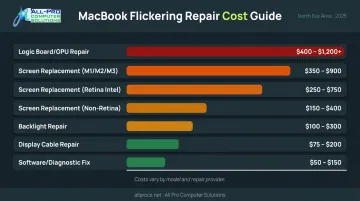
iFixit's display assembly pricing runs from $149.99 for older 13-inch Unibody parts to $629.99 for 16-inch MacBook Pro assemblies. M1/M2 models cost more due to parts complexity — Apple Silicon display assemblies range from roughly $400 to $630 for parts alone, before labor.
Apple vs. Independent Repair Shops
Apple and Authorized Service Providers don't publish flat display prices — Apple provides a personalized estimate after inspection. In practice, Apple commonly recommends full board or display assembly replacement rather than component-level repair, which pushes costs higher.
Independent shops can be worth considering for that reason. APCS, for example, charges a flat $100 diagnostic fee that covers the full assessment — useful if you want a clear picture of what you're dealing with before committing to a repair.
AppleCare+ and Warranty Considerations
Before paying for any repair, check your warranty status:
- Standard one-year warranty covers manufacturing defects in materials and workmanship — if flickering stems from a defect and you're within the warranty period, repair may be free
- AppleCare+ for Mac covers accidental damage with a $99 service fee for screen-only damage and a $299 fee for other accidental damage; current AppleCare+ pricing starts at $3.49/month or $34.99/year
- User-caused damage (drops, liquid) is excluded from standard warranty but may qualify for the reduced AppleCare+ fee
When to Fix vs. Replace Your MacBook
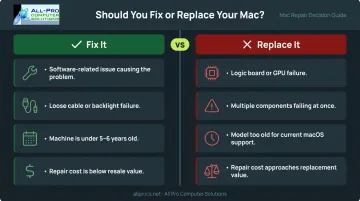
The core question isn't just "how much does the repair cost?" — it's whether the repair makes sense for the machine's remaining value. Consumer Reports' benchmark says don't spend more than 50% of a new product's cost repairing an old one. For MacBooks, that translates roughly to:
Fix if:
- The flickering has a software cause (free fix)
- The issue is a loose cable or backlight problem (low-to-mid repair cost)
- The rest of the machine works well with no other failing components
- The MacBook is under 5–6 years old and the repair cost sits well below the machine's resale value
Replace if:
- The diagnosis points to logic board or GPU failure (repair quotes of $750–$1,600 at Apple are common)
- Multiple components are failing simultaneously
- The model is too old to run current macOS versions (Apple classifies products as "vintage" after 5–7 years from distribution and "obsolete" after 7 years)
- Repair quotes approach the cost of a refurbished replacement
For reference, older Intel MacBook Pro resale values run roughly $90–$340 depending on year and condition, while newer M-series models hold more value ($275–$665 range). A $500+ display repair on a 2018 Intel MacBook Pro often doesn't make financial sense.
Get a professional assessment before committing to any repair. A straight-talking technician will tell you when a repair isn't worth it — and point you toward a better option instead.
How to Prevent MacBook Screen Flickering
Prevention won't eliminate every risk — flex cable fatigue from hinge movement is partly a mechanical reality — but these habits meaningfully reduce the odds:
- Keep macOS updated to catch display driver patches before bugs become persistent issues
- Maintain airflow — use your MacBook on hard, flat surfaces; keep vents clear; have fans cleaned periodically, especially if the machine runs hot without heavy workloads
- Handle the lid gently — repeated hinge stress accelerates display cable wear — the same mechanism behind the Flexgate issue on 2016 MacBook Pros
- Avoid liquid exposure near the machine; even minor moisture can disrupt display components
- Don't press on the closed lid — pressure on the display assembly can crack or shift internal components over time
For business users who depend on their Mac daily, periodic professional check-ups can catch loose connections or thermal buildup before they turn into display failures. APCS provides Computer Maintenance Apps with personalized notes and instructions for each client across Sonoma and Marin counties — a concrete way for North Bay users to track their machine's health and act before problems escalate.
Frequently Asked Questions
How much does it cost to fix a screen on a Mac?
Screen replacement typically runs $300–$700+ in the US, depending on whether the model has a Retina display and which chip generation it uses. Software-only fixes cost nothing, and independent repair shops generally charge less than Apple's service centers.
Can MacBook screen flickering be fixed without replacing the screen?
Yes, often. Many flickering cases resolve through a software fix, NVRAM/SMC reset, display cable reseating, or backlight repair — all less expensive than full screen replacement. A diagnostic will confirm which path applies to your machine.
How do I know if my MacBook screen flickering is hardware or software?
Boot in Safe Mode. If flickering stops, a software conflict is the likely cause. If it persists in Safe Mode, or an external monitor displays fine while the built-in screen still flickers, the internal display hardware is almost certainly at fault.
Does Apple cover MacBook screen flickering under warranty?
Apple's one-year limited warranty covers manufacturing defects, including display issues. Accidental damage isn't covered under standard warranty, but AppleCare+ reduces screen damage repair to a $99 service fee. Check your coverage before paying out of pocket.
Is it worth repairing a MacBook with a flickering screen, or should I buy a new one?
Repair makes sense if the Mac is under 5–6 years old, the flickering is isolated to one fixable component, and the repair cost falls well below the machine's replacement value. A professional diagnosis gives you the actual repair cost upfront so you can compare it against replacement before committing.
Can I use my MacBook with an external monitor if the screen is flickering?
Yes. Connecting via HDMI or USB-C is a practical workaround while you arrange a repair. If the external display works fine but the built-in screen still flickers, that points to the internal display or its cable connection, not the GPU.